


IPTVORE · Setup help
IPTV setup guide
Choose your device, then an app. Follow the numbered steps to get connected.
Before you start: your three IPTVORE login details
When you purchase IPTVORE, you receive your login details. Most IPTV applications ask for three things:
- Username
- Password
- Server URL
Enter them exactly as provided in your activation message. Server URL means the web address for your IPTVORE account.
Some apps use one complete M3U playlist link instead. MAG and other portal devices may need a registered device ID and a portal URL. The guide below tells you which details belong where.
What device are you using?
Open your device, then choose an app. Only that guide expands. App availability depends on your model, software version and country.
Fire TV / Firestick8K Player • Smarters Pro • TiviMate
Which app should I choose? Use 8K Player VIP if your activation message names it. Otherwise start with Smarters Pro; TiviMate is the advanced option.
How to install with Downloader on Fire OS
- From Fire TV Home, open Find / Search. Search for Downloader, select the app by AFTVnews, then choose Get / Download.
- Open Settings → My Fire TV → Developer Options → Install Unknown Apps. Allow Downloader to install the player. Older Fire OS versions may call this “Apps from Unknown Sources”. You do not need ADB debugging.
- If Developer Options is missing, open My Fire TV → About and select your device name seven times. Press Back and open Developer Options.
- Open Downloader. Enter the verified download address or the code stated in the app guide below, choose Go, and check that the destination identifies the intended player. Choose Install, then Open.
- You can turn off Downloader’s install permission after installation. If your device does not offer these settings, check whether it uses Vega OS; do not keep repeating the Fire OS steps.
8K Player VIPExisting IPTVORE guide
8K Player VIP
Best for: customers whose activation message directs them to IPTVORE’s preconfigured 8K Player.
A compatible Fire OS device, Downloader, and your IPTVORE username and password.
1Install 8K Player VIP
Use the Downloader instructions above. The code in IPTVORE’s existing guide is 6883465. Enter it in Downloader and choose Go. Allow the redirect and download to finish, then choose Install → Open.
2Choose the IPTVORE profile
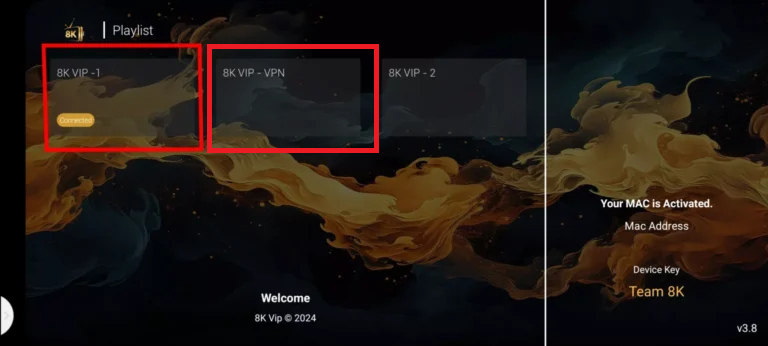
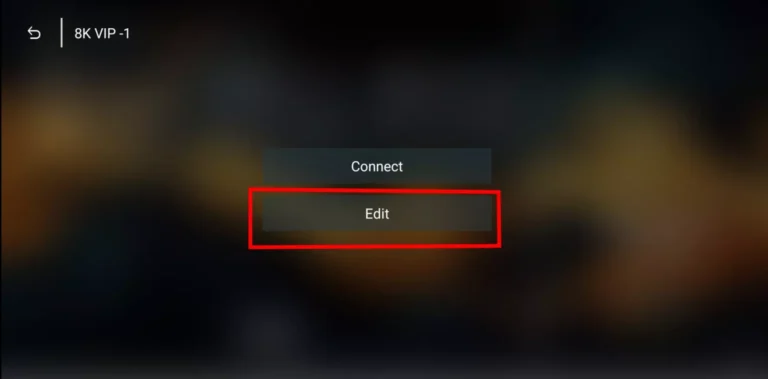
Open the app. The existing IPTVORE setup uses 8K VIP – VPN first. Select that preset, then choose Edit. If your activation message names a different preset, follow that message instead.
3Enter your account details
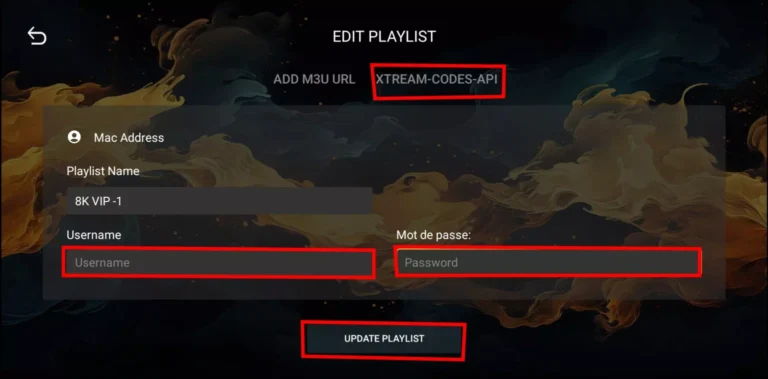
Choose Xtream Codes API in the Edit Playlist screen if needed. In this preconfigured player, enter:
- Playlist name
- IPTVORE, or another name you recognise.
- Username
- Your IPTV username from the activation message.
- Password / Mot de passe
- Your IPTV password from the same message.
The supplied preset handles the server connection. If your app instead asks for a server URL, use the exact address in your activation message; do not invent one.
4Update and connect
Select Update Playlist. Return to the saved profile and choose Connect if shown. Wait for your channel list to load.
5Start watching
Choose the live-channel, movie or series section included in your account. If the preset fails, check the details below before trying a different server; use only alternatives supplied by IPTVORE.
Show the existing app screenshots
These pictures show an older 8K Player interface. The profile name and appearance may differ from your version.
If it doesn’t work
- Check the connection details required by your chosen login method. Copy them exactly and remove spaces at the beginning or end.
- Use the login method supplied for your account. A complete M3U link does not belong in the Server URL field.
- Close and reopen the player, and check that another app can connect to the internet.
- Confirm that your IPTVORE account is active. Some orders need manual intervention and may take up to 12 hours to activate.
- If the error remains, contact support with your device, app name and error message. Do not post your password publicly.
Smarters ProRecommended for general login
Smarters Pro
Best for: Fire OS users who want one login for their channels, films and series.
Your IPTVORE username, IPTV password and server URL, or the complete M3U link supplied for your account.
1Install Smarters Pro
Use the Downloader steps above and follow the Firestick installation instructions on the official Smarters Pro website. Use the developer’s current link, not an advertisement or an unrelated similarly named app.
2Open the IPTV login screen
Open the player and choose the option to add a playlist or account. Select Xtream Codes / XC when offered. This means “log in with the three details from IPTVORE”. Labels can vary by app version.
3Enter your IPTVORE details
- Playlist / profile name
- Type IPTVORE. This is just a name you choose.
- Username
- The IPTV username in your activation message — usually not your email address.
- Password
- The IPTV password in that same message — not your WordPress or app-store password.
- Server / host URL
- The server web address supplied for this account. Keep http:// or https:// and any port number exactly as supplied.
If your activation message contains only an M3U URL, select the M3U/playlist-link option instead and paste the whole link. Do not split it into the fields above.
4Save and let the list load
Choose the app’s login, add or save button. Wait for the account’s channel list to finish loading; keep the app open while it loads.
5Start watching
Open your saved IPTVORE profile. Choose Live TV, Movies or Series if that section is included in your account. The programme guide may take longer to populate.
If it doesn’t work
- Check the connection details required by your chosen login method. Copy them exactly and remove spaces at the beginning or end.
- Use the login method supplied for your account. A complete M3U link does not belong in the Server URL field.
- Close and reopen the player, and check that another app can connect to the internet.
- Confirm that your IPTVORE account is active. Some orders need manual intervention and may take up to 12 hours to activate.
- If the error remains, contact support with your device, app name and error message. Do not post your password publicly.
TiviMateAdvanced option
TiviMate
Best for: viewers who prefer a TV-style programme guide and are comfortable choosing their connection type.
An Android TV/Google TV or compatible Fire OS device, plus the connection details supplied by IPTVORE.
1Install TiviMate
On a compatible Fire OS device, use the Downloader instructions above, then enter 272483 or tivimate.com/apk. These are listed on the TiviMate publisher’s website. Check the app name before installing.
2Add a playlist
Open TiviMate and start adding a playlist. Choose the connection type in your activation message: Xtream Codes, M3U or a provider-registered Stalker portal.
3Match the fields to your connection type
For Xtream Codes only:
- Playlist / profile name
- Type IPTVORE. This is just a name you choose.
- Username
- The IPTV username in your activation message — usually not your email address.
- Password
- The IPTV password in that same message — not your WordPress or app-store password.
- Server / host URL
- The server web address supplied for this account. Keep http:// or https:// and any port number exactly as supplied.
M3U: paste the full supplied playlist URL into the playlist field. Portal: enter only the portal URL supplied after IPTVORE registers the device/app ID. Do not guess a portal address from an ordinary server URL.
4Finish the playlist prompts
Follow the app’s on-screen prompts to finish and wait for the channel list. If IPTVORE supplied a separate EPG URL, add it as the programme-guide source; it is not a second playlist.
5Open the programme guide
Select your IPTVORE playlist and a live channel. Use the player’s guide to browse programmes. Movie and series features depend on the player edition and the account supplied.
If it doesn’t work
- Check the connection details required by your chosen login method. Copy them exactly and remove spaces at the beginning or end.
- Use the login method supplied for your account. A complete M3U link does not belong in the Server URL field.
- Close and reopen the player, and check that another app can connect to the internet.
- Confirm that your IPTVORE account is active. Some orders need manual intervention and may take up to 12 hours to activate.
- If the error remains, contact support with your device, app name and error message. Do not post your password publicly.
Samsung Smart TVIBO Player
IBO PlayerRecommended
IBO Player
Best for: setting up a TV with a remote, while entering long login details on a phone or computer.
IBO Player installed; its MAC/Device ID and Device Key; plus your IPTVORE login details or complete M3U URL.
1Install the correct IBO Player
On your Samsung TV, open Apps / Samsung TV app store, search for IBO Player and install it if your model and region are supported. This guide is for the version that shows iboplayer.com inside the app.
2Find the two codes on your screen
Open IBO Player. Keep the screen showing the MAC / Device ID and Device Key open. These identify this installation of the player; they are not your IPTVORE username and password.
3Add your IPTV account from a phone or computer
Open the IBO Player manage-playlist portal. Enter the Device ID and Device Key shown on your TV, then log in. Choose Add XC Playlist if shown; XC means the username/password/server login.
- Playlist / profile name
- Type IPTVORE. This is just a name you choose.
- Username
- The IPTV username in your activation message — usually not your email address.
- Password
- The IPTV password in that same message — not your WordPress or app-store password.
- Server / host URL
- The server web address supplied for this account. Keep http:// or https:// and any port number exactly as supplied.
Use the server address in your own activation message. The previous IPTVORE guide listed http://cf.cdn8k.me/; use it only if it matches the details supplied for your account. If you were given an M3U link, use the portal’s M3U/playlist-URL option instead.
4Save and refresh the TV app
Save the playlist on the website. Return to the TV and choose Reload or Change Playlist if offered, or close and reopen IBO Player. Select the IPTVORE playlist you added.
5Open your channels
Allow the playlist to load, then open the live-channel, movie or series section available for your account.
If it doesn’t work
- Check the connection details required by your chosen login method. Copy them exactly and remove spaces at the beginning or end.
- Use the login method supplied for your account. A complete M3U link does not belong in the Server URL field.
- Close and reopen the player, and check that another app can connect to the internet.
- Confirm that your IPTVORE account is active. Some orders need manual intervention and may take up to 12 hours to activate.
- If the app asks for a player licence, check the player account separately. If your IPTVORE login is rejected, contact IPTVORE support.
iPhone / iPadSmarters Pro
Smarters ProRecommended
Smarters Pro
Best for: iPhone and iPad users who want one login for their channels, films and series.
Your IPTVORE username, IPTV password and server URL, or the complete M3U link supplied for your account.
1Install Smarters Pro
Open the Smarters Pro App Store listing and choose Get. Check the name Smarters Pro and developer Tech Smarters Private Limited. This link is not Smarters Player Lite.
2Open the IPTV login screen
Open the player and choose the option to add a playlist or account. Select Xtream Codes / XC when offered. This means “log in with the three details from IPTVORE”. Labels can vary by app version.
3Enter your IPTVORE details
- Playlist / profile name
- Type IPTVORE. This is just a name you choose.
- Username
- The IPTV username in your activation message — usually not your email address.
- Password
- The IPTV password in that same message — not your WordPress or app-store password.
- Server / host URL
- The server web address supplied for this account. Keep http:// or https:// and any port number exactly as supplied.
If your activation message contains only an M3U URL, select the M3U/playlist-link option instead and paste the whole link. Do not split it into the fields above.
4Save and let the list load
Choose the app’s login, add or save button. Wait for the account’s channel list to finish loading; keep the app open while it loads.
5Start watching
Open your saved IPTVORE profile. Choose Live TV, Movies or Series if that section is included in your account. The programme guide may take longer to populate.
If it doesn’t work
- Check the connection details required by your chosen login method. Copy them exactly and remove spaces at the beginning or end.
- Use the login method supplied for your account. A complete M3U link does not belong in the Server URL field.
- Close and reopen the player, and check that another app can connect to the internet.
- Confirm that your IPTVORE account is active. Some orders need manual intervention and may take up to 12 hours to activate.
- If the error remains, contact support with your device, app name and error message. Do not post your password publicly.
LG Smart TVIBO Player
IBO PlayerRecommended
IBO Player
Best for: setting up a TV with a remote, while entering long login details on a phone or computer.
IBO Player installed; its MAC/Device ID and Device Key; plus your IPTVORE login details or complete M3U URL.
1Install the correct IBO Player
On your LG TV, open LG Content Store / Apps, search for IBO Player and install it if your model and region are supported. This guide is for the version that shows iboplayer.com inside the app.
2Find the two codes on your screen
Open IBO Player. Keep the screen showing the MAC / Device ID and Device Key open. These identify this installation of the player; they are not your IPTVORE username and password.
3Add your IPTV account from a phone or computer
Open the IBO Player manage-playlist portal. Enter the Device ID and Device Key shown on your TV, then log in. Choose Add XC Playlist if shown; XC means the username/password/server login.
- Playlist / profile name
- Type IPTVORE. This is just a name you choose.
- Username
- The IPTV username in your activation message — usually not your email address.
- Password
- The IPTV password in that same message — not your WordPress or app-store password.
- Server / host URL
- The server web address supplied for this account. Keep http:// or https:// and any port number exactly as supplied.
Use the server address in your own activation message. The previous IPTVORE guide listed http://cf.cdn8k.me/; use it only if it matches the details supplied for your account. If you were given an M3U link, use the portal’s M3U/playlist-URL option instead.
4Save and refresh the TV app
Save the playlist on the website. Return to the TV and choose Reload or Change Playlist if offered, or close and reopen IBO Player. Select the IPTVORE playlist you added.
5Open your channels
Allow the playlist to load, then open the live-channel, movie or series section available for your account.
If it doesn’t work
- Check the connection details required by your chosen login method. Copy them exactly and remove spaces at the beginning or end.
- Use the login method supplied for your account. A complete M3U link does not belong in the Server URL field.
- Close and reopen the player, and check that another app can connect to the internet.
- Confirm that your IPTVORE account is active. Some orders need manual intervention and may take up to 12 hours to activate.
- If the app asks for a player licence, check the player account separately. If your IPTVORE login is rejected, contact IPTVORE support.
Android TV / TV boxSmarters Pro • IBO • TiviMate
Smarters ProRecommended
Smarters Pro
Best for: Android TV users who want one login for their channels, films and series.
Your IPTVORE username, IPTV password and server URL, or the complete M3U link supplied for your account.
1Install Smarters Pro
Open Google Play on your device and use the Android / Android TV store link from the Smarters Pro developer’s website. Check that the developer is Tech Smarters and that the store lists your device as compatible.
2Open the IPTV login screen
Open the player and choose the option to add a playlist or account. Select Xtream Codes / XC when offered. This means “log in with the three details from IPTVORE”. Labels can vary by app version.
3Enter your IPTVORE details
- Playlist / profile name
- Type IPTVORE. This is just a name you choose.
- Username
- The IPTV username in your activation message — usually not your email address.
- Password
- The IPTV password in that same message — not your WordPress or app-store password.
- Server / host URL
- The server web address supplied for this account. Keep http:// or https:// and any port number exactly as supplied.
If your activation message contains only an M3U URL, select the M3U/playlist-link option instead and paste the whole link. Do not split it into the fields above.
4Save and let the list load
Choose the app’s login, add or save button. Wait for the account’s channel list to finish loading; keep the app open while it loads.
5Start watching
Open your saved IPTVORE profile. Choose Live TV, Movies or Series if that section is included in your account. The programme guide may take longer to populate.
If it doesn’t work
- Check the connection details required by your chosen login method. Copy them exactly and remove spaces at the beginning or end.
- Use the login method supplied for your account. A complete M3U link does not belong in the Server URL field.
- Close and reopen the player, and check that another app can connect to the internet.
- Confirm that your IPTVORE account is active. Some orders need manual intervention and may take up to 12 hours to activate.
- If the error remains, contact support with your device, app name and error message. Do not post your password publicly.
IBO PlayerAlternative
IBO Player
Best for: setting up a TV with a remote, while entering long login details on a phone or computer.
IBO Player installed; its MAC/Device ID and Device Key; plus your IPTVORE login details or complete M3U URL.
1Install the correct IBO Player
On your Android TV, open Google Play, search for IBO Player and install it if your model and region are supported. This guide is for the version that shows iboplayer.com inside the app.
2Find the two codes on your screen
Open IBO Player. Keep the screen showing the MAC / Device ID and Device Key open. These identify this installation of the player; they are not your IPTVORE username and password.
3Add your IPTV account from a phone or computer
Open the IBO Player manage-playlist portal. Enter the Device ID and Device Key shown on your TV, then log in. Choose Add XC Playlist if shown; XC means the username/password/server login.
- Playlist / profile name
- Type IPTVORE. This is just a name you choose.
- Username
- The IPTV username in your activation message — usually not your email address.
- Password
- The IPTV password in that same message — not your WordPress or app-store password.
- Server / host URL
- The server web address supplied for this account. Keep http:// or https:// and any port number exactly as supplied.
Use the server address in your own activation message. The previous IPTVORE guide listed http://cf.cdn8k.me/; use it only if it matches the details supplied for your account. If you were given an M3U link, use the portal’s M3U/playlist-URL option instead.
4Save and refresh the TV app
Save the playlist on the website. Return to the TV and choose Reload or Change Playlist if offered, or close and reopen IBO Player. Select the IPTVORE playlist you added.
5Open your channels
Allow the playlist to load, then open the live-channel, movie or series section available for your account.
If it doesn’t work
- Check the connection details required by your chosen login method. Copy them exactly and remove spaces at the beginning or end.
- Use the login method supplied for your account. A complete M3U link does not belong in the Server URL field.
- Close and reopen the player, and check that another app can connect to the internet.
- Confirm that your IPTVORE account is active. Some orders need manual intervention and may take up to 12 hours to activate.
- If the app asks for a player licence, check the player account separately. If your IPTVORE login is rejected, contact IPTVORE support.
TiviMateAdvanced option
TiviMate
Best for: viewers who prefer a TV-style programme guide and are comfortable choosing their connection type.
An Android TV/Google TV or compatible Fire OS device, plus the connection details supplied by IPTVORE.
1Install TiviMate
Open Google Play on your TV and search for TiviMate IPTV Player by Armobsoft FZE, or use the official Google Play listing. Install only if the store says it is compatible with your device.
2Add a playlist
Open TiviMate and start adding a playlist. Choose the connection type in your activation message: Xtream Codes, M3U or a provider-registered Stalker portal.
3Match the fields to your connection type
For Xtream Codes only:
- Playlist / profile name
- Type IPTVORE. This is just a name you choose.
- Username
- The IPTV username in your activation message — usually not your email address.
- Password
- The IPTV password in that same message — not your WordPress or app-store password.
- Server / host URL
- The server web address supplied for this account. Keep http:// or https:// and any port number exactly as supplied.
M3U: paste the full supplied playlist URL into the playlist field. Portal: enter only the portal URL supplied after IPTVORE registers the device/app ID. Do not guess a portal address from an ordinary server URL.
4Finish the playlist prompts
Follow the app’s on-screen prompts to finish and wait for the channel list. If IPTVORE supplied a separate EPG URL, add it as the programme-guide source; it is not a second playlist.
5Open the programme guide
Select your IPTVORE playlist and a live channel. Use the player’s guide to browse programmes. Movie and series features depend on the player edition and the account supplied.
If it doesn’t work
- Check the connection details required by your chosen login method. Copy them exactly and remove spaces at the beginning or end.
- Use the login method supplied for your account. A complete M3U link does not belong in the Server URL field.
- Close and reopen the player, and check that another app can connect to the internet.
- Confirm that your IPTVORE account is active. Some orders need manual intervention and may take up to 12 hours to activate.
- If the error remains, contact support with your device, app name and error message. Do not post your password publicly.
Google TV / Nvidia ShieldSmarters Pro • TiviMate
Smarters ProRecommended
Smarters Pro
Best for: Google TV and Nvidia Shield users who want one login for their channels, films and series.
Your IPTVORE username, IPTV password and server URL, or the complete M3U link supplied for your account.
1Install Smarters Pro
Open Google Play on your device and use the Android / Android TV store link from the Smarters Pro developer’s website. Check that the developer is Tech Smarters and that the store lists your device as compatible.
2Open the IPTV login screen
Open the player and choose the option to add a playlist or account. Select Xtream Codes / XC when offered. This means “log in with the three details from IPTVORE”. Labels can vary by app version.
3Enter your IPTVORE details
- Playlist / profile name
- Type IPTVORE. This is just a name you choose.
- Username
- The IPTV username in your activation message — usually not your email address.
- Password
- The IPTV password in that same message — not your WordPress or app-store password.
- Server / host URL
- The server web address supplied for this account. Keep http:// or https:// and any port number exactly as supplied.
If your activation message contains only an M3U URL, select the M3U/playlist-link option instead and paste the whole link. Do not split it into the fields above.
4Save and let the list load
Choose the app’s login, add or save button. Wait for the account’s channel list to finish loading; keep the app open while it loads.
5Start watching
Open your saved IPTVORE profile. Choose Live TV, Movies or Series if that section is included in your account. The programme guide may take longer to populate.
If it doesn’t work
- Check the connection details required by your chosen login method. Copy them exactly and remove spaces at the beginning or end.
- Use the login method supplied for your account. A complete M3U link does not belong in the Server URL field.
- Close and reopen the player, and check that another app can connect to the internet.
- Confirm that your IPTVORE account is active. Some orders need manual intervention and may take up to 12 hours to activate.
- If the error remains, contact support with your device, app name and error message. Do not post your password publicly.
TiviMateAdvanced option
TiviMate
Best for: viewers who prefer a TV-style programme guide and are comfortable choosing their connection type.
An Android TV/Google TV or compatible Fire OS device, plus the connection details supplied by IPTVORE.
1Install TiviMate
Open Google Play on your TV and search for TiviMate IPTV Player by Armobsoft FZE, or use the official Google Play listing. Install only if the store says it is compatible with your device.
2Add a playlist
Open TiviMate and start adding a playlist. Choose the connection type in your activation message: Xtream Codes, M3U or a provider-registered Stalker portal.
3Match the fields to your connection type
For Xtream Codes only:
- Playlist / profile name
- Type IPTVORE. This is just a name you choose.
- Username
- The IPTV username in your activation message — usually not your email address.
- Password
- The IPTV password in that same message — not your WordPress or app-store password.
- Server / host URL
- The server web address supplied for this account. Keep http:// or https:// and any port number exactly as supplied.
M3U: paste the full supplied playlist URL into the playlist field. Portal: enter only the portal URL supplied after IPTVORE registers the device/app ID. Do not guess a portal address from an ordinary server URL.
4Finish the playlist prompts
Follow the app’s on-screen prompts to finish and wait for the channel list. If IPTVORE supplied a separate EPG URL, add it as the programme-guide source; it is not a second playlist.
5Open the programme guide
Select your IPTVORE playlist and a live channel. Use the player’s guide to browse programmes. Movie and series features depend on the player edition and the account supplied.
If it doesn’t work
- Check the connection details required by your chosen login method. Copy them exactly and remove spaces at the beginning or end.
- Use the login method supplied for your account. A complete M3U link does not belong in the Server URL field.
- Close and reopen the player, and check that another app can connect to the internet.
- Confirm that your IPTVORE account is active. Some orders need manual intervention and may take up to 12 hours to activate.
- If the error remains, contact support with your device, app name and error message. Do not post your password publicly.
Android phone / tabletSmarters Pro
Smarters ProRecommended
Smarters Pro
Best for: Android phone and tablet users who want one login for their channels, films and series.
Your IPTVORE username, IPTV password and server URL, or the complete M3U link supplied for your account.
1Install Smarters Pro
Open Google Play on your device and use the Android / Android TV store link from the Smarters Pro developer’s website. Check that the developer is Tech Smarters and that the store lists your device as compatible.
2Open the IPTV login screen
Open the player and choose the option to add a playlist or account. Select Xtream Codes / XC when offered. This means “log in with the three details from IPTVORE”. Labels can vary by app version.
3Enter your IPTVORE details
- Playlist / profile name
- Type IPTVORE. This is just a name you choose.
- Username
- The IPTV username in your activation message — usually not your email address.
- Password
- The IPTV password in that same message — not your WordPress or app-store password.
- Server / host URL
- The server web address supplied for this account. Keep http:// or https:// and any port number exactly as supplied.
If your activation message contains only an M3U URL, select the M3U/playlist-link option instead and paste the whole link. Do not split it into the fields above.
4Save and let the list load
Choose the app’s login, add or save button. Wait for the account’s channel list to finish loading; keep the app open while it loads.
5Start watching
Open your saved IPTVORE profile. Choose Live TV, Movies or Series if that section is included in your account. The programme guide may take longer to populate.
If it doesn’t work
- Check the connection details required by your chosen login method. Copy them exactly and remove spaces at the beginning or end.
- Use the login method supplied for your account. A complete M3U link does not belong in the Server URL field.
- Close and reopen the player, and check that another app can connect to the internet.
- Confirm that your IPTVORE account is active. Some orders need manual intervention and may take up to 12 hours to activate.
- If the error remains, contact support with your device, app name and error message. Do not post your password publicly.
Apple TVSmarters Pro
Smarters ProRecommended
Smarters Pro
Best for: Apple TV users who want one login for their channels, films and series.
Your IPTVORE username, IPTV password and server URL, or the complete M3U link supplied for your account.
1Install Smarters Pro
On Apple TV, open the App Store and find Smarters Pro by Tech Smarters Private Limited. The official listing identifies its Apple TV compatibility. Install it if your tvOS version is supported.
2Open the IPTV login screen
Open the player and choose the option to add a playlist or account. Select Xtream Codes / XC when offered. This means “log in with the three details from IPTVORE”. Labels can vary by app version.
3Enter your IPTVORE details
- Playlist / profile name
- Type IPTVORE. This is just a name you choose.
- Username
- The IPTV username in your activation message — usually not your email address.
- Password
- The IPTV password in that same message — not your WordPress or app-store password.
- Server / host URL
- The server web address supplied for this account. Keep http:// or https:// and any port number exactly as supplied.
If your activation message contains only an M3U URL, select the M3U/playlist-link option instead and paste the whole link. Do not split it into the fields above.
4Save and let the list load
Choose the app’s login, add or save button. Wait for the account’s channel list to finish loading; keep the app open while it loads.
5Start watching
Open your saved IPTVORE profile. Choose Live TV, Movies or Series if that section is included in your account. The programme guide may take longer to populate.
If it doesn’t work
- Check the connection details required by your chosen login method. Copy them exactly and remove spaces at the beginning or end.
- Use the login method supplied for your account. A complete M3U link does not belong in the Server URL field.
- Close and reopen the player, and check that another app can connect to the internet.
- Confirm that your IPTVORE account is active. Some orders need manual intervention and may take up to 12 hours to activate.
- If the error remains, contact support with your device, app name and error message. Do not post your password publicly.
Windows PCSmarters Pro desktop — beta
Smarters ProDesktop option
Smarters Pro
Best for: Windows users who want one login for their channels, films and series.
Your IPTVORE username, IPTV password and server URL, or the complete M3U link supplied for your account.
1Install Smarters Pro
Visit the Smarters Pro developer’s website, choose its Windows download and run the downloaded installer. The current desktop release is labelled Beta; test your account before relying on it.
2Open the IPTV login screen
Open the player and choose the option to add a playlist or account. Select Xtream Codes / XC when offered. This means “log in with the three details from IPTVORE”. Labels can vary by app version.
3Enter your IPTVORE details
- Playlist / profile name
- Type IPTVORE. This is just a name you choose.
- Username
- The IPTV username in your activation message — usually not your email address.
- Password
- The IPTV password in that same message — not your WordPress or app-store password.
- Server / host URL
- The server web address supplied for this account. Keep http:// or https:// and any port number exactly as supplied.
If your activation message contains only an M3U URL, select the M3U/playlist-link option instead and paste the whole link. Do not split it into the fields above.
4Save and let the list load
Choose the app’s login, add or save button. Wait for the account’s channel list to finish loading; keep the app open while it loads.
5Start watching
Open your saved IPTVORE profile. Choose Live TV, Movies or Series if that section is included in your account. The programme guide may take longer to populate.
If it doesn’t work
- Check the connection details required by your chosen login method. Copy them exactly and remove spaces at the beginning or end.
- Use the login method supplied for your account. A complete M3U link does not belong in the Server URL field.
- Close and reopen the player, and check that another app can connect to the internet.
- Confirm that your IPTVORE account is active. Some orders need manual intervention and may take up to 12 hours to activate.
- If the error remains, contact support with your device, app name and error message. Do not post your password publicly.
MacSmarters Pro desktop — beta
Smarters ProDesktop option
Smarters Pro
Best for: Mac users who want one login for their channels, films and series.
Your IPTVORE username, IPTV password and server URL, or the complete M3U link supplied for your account.
1Install Smarters Pro
Visit the Smarters Pro developer’s website and choose the macOS download for your system. The current desktop release is labelled Beta. Follow macOS’s normal installation prompts; do not bypass a security warning.
2Open the IPTV login screen
Open the player and choose the option to add a playlist or account. Select Xtream Codes / XC when offered. This means “log in with the three details from IPTVORE”. Labels can vary by app version.
3Enter your IPTVORE details
- Playlist / profile name
- Type IPTVORE. This is just a name you choose.
- Username
- The IPTV username in your activation message — usually not your email address.
- Password
- The IPTV password in that same message — not your WordPress or app-store password.
- Server / host URL
- The server web address supplied for this account. Keep http:// or https:// and any port number exactly as supplied.
If your activation message contains only an M3U URL, select the M3U/playlist-link option instead and paste the whole link. Do not split it into the fields above.
4Save and let the list load
Choose the app’s login, add or save button. Wait for the account’s channel list to finish loading; keep the app open while it loads.
5Start watching
Open your saved IPTVORE profile. Choose Live TV, Movies or Series if that section is included in your account. The programme guide may take longer to populate.
If it doesn’t work
- Check the connection details required by your chosen login method. Copy them exactly and remove spaces at the beginning or end.
- Use the login method supplied for your account. A complete M3U link does not belong in the Server URL field.
- Close and reopen the player, and check that another app can connect to the internet.
- Confirm that your IPTVORE account is active. Some orders need manual intervention and may take up to 12 hours to activate.
- If the error remains, contact support with your device, app name and error message. Do not post your password publicly.
FormulerMYTVOnline 2, 3 or 4
Formuler MYTVOnlineRecommended
Formuler MYTVOnline
Best for: Formuler owners who want to use the player already supplied with their box.
Your MYTVOnline version and the exact XC, M3U or registered-MAC portal details supplied by IPTVORE.
1Open the built-in player
Use MYTVOnline, supplied on supported Formuler boxes. You do not need to install a different player for this guide.
2Open your version’s connection settings
- MYTVOnline 2: Menu → Connections.
- MYTVOnline 3: Menu → Content Manager → Content Sources.
- MYTVOnline 4: Menu → Settings → App Settings → Content Sources.
Add a portal for an XC or registered-MAC connection, or add a playlist for an M3U link.
3Use the login method IPTVORE supplied
- Xtream Codes / XC
- Name: IPTVORE. URL: the supplied server/portal address. Enable Login required? if shown, then enter your IPTV username and password.
- Registered MAC / portal
- First give IPTVORE the MAC-ID displayed inside MYTVOnline’s Add Portal screen. Enter the exact portal URL IPTVORE supplies. Leave username and password blank unless your supplied login method says otherwise.
- M3U playlist
- Paste the complete M3U URL into the playlist field. Put any separate EPG URL in the programme-guide field.
4Save and connect
Choose the save/connect option and wait for the content source to load. For a registered-MAC connection, the correct MAC-ID must be registered for an active account first.
5Choose a channel
Open the connected content source and browse its TV guide. Movies and series appear when supported by your connection and account.
If it doesn’t work
- Check the connection details required by your chosen login method. Copy them exactly and remove spaces at the beginning or end.
- Use the login method supplied for your account. A complete M3U link does not belong in the Server URL field.
- Close and reopen the player, and check that another app can connect to the internet.
- Confirm that your IPTVORE account is active. Some orders need manual intervention and may take up to 12 hours to activate.
- If the error remains, contact support with your device, app name and error message. Do not post your password publicly.
MAG boxRegistered portal connection
MAG portal connectionDevice-specific setup
MAG portal connection
Best for: supported MAG Linux boxes that connect directly to a provider portal.
Your exact MAG model, its registered MAC address and the portal URL supplied by IPTVORE.
1Confirm your MAG model and portal account
This guide is for MAG Linux boxes with a Servers → Portals menu. Have IPTVORE register the box’s MAC address and supply its portal URL first. MAG Android models such as MAG425A use an app instead; these menus do not apply.
2Open the portal settings
On the box, open Settings → System settings → Servers → Portals.
3Enter the supplied portal
- Portal 1 name
- IPTVORE
- Portal 1 URL
- The exact portal URL supplied for your registered box. Do not add /c, change the protocol, or guess an address.
Your ordinary website password or an M3U link is not a portal URL.
4Save and restart the portal
Save the settings, leave this menu and choose System settings → Restart Portal. If a provider login screen appears, use only the login details IPTVORE supplied.
5Open the TV section
Allow the provider’s menu to load, then choose TV or the available content category. Menu names depend on the portal.
If it doesn’t work
- Ask IPTVORE to confirm that the exact MAC address for this box is registered.
- Copy the supplied portal URL exactly, including its protocol and any port or path.
- Confirm that your account is active. Some orders need manual intervention and may take up to 12 hours.
- Check your internet connection, then restart the portal once.
- If you see an authorisation error, send support your model and error message. Do not factory-reset the box.
RokuCheck compatibility first
Other device or appFind the right connection method
Already using Kodi, Smart IPTV, GSE Smart IPTV or OTT Player? These appear in IPTVORE’s app choices, but installation and login vary by device. Use the app developer’s instructions and the exact connection type from your activation message.
Before installing HOT IPTV, IBO Player Pro, SmartOne, XCIPTV, Sparkle or a similarly named app, confirm the app and your device model with IPTVORE. This guide does not assume those combinations are supported.
For an M3U player, use the complete playlist URL. For a portal player, have IPTVORE confirm device registration and supply the correct portal URL. Do not convert or guess login details.
Quick answers
Common setup questions
Where do I find my server URL?
Look in your IPTVORE activation email or message, alongside the IPTV username and password. It is the web address for your account. If it is missing, ask support to resend the connection details; do not copy a server from another customer or an old screenshot.
Do I use my email and website password?
Usually not. A player needs the IPTV username and IPTV password supplied in your activation message. Your website login, Apple ID, Google password and player-licence account are separate.
What do Xtream Codes, M3U and portal mean?
Xtream Codes / XC uses three fields: server URL, username and password. M3U uses one complete playlist link. A portal uses a provider address and often a registered device ID. Use the method IPTVORE supplied. DNS is sometimes used informally to mean the server address; you do not need to change your router’s DNS to follow these guides.
My login says invalid. What should I check?
Check all three login fields and remove leading/trailing spaces. Keep the URL’s protocol and port exactly as supplied. Confirm that the account has activated and has not expired. Some orders need manual intervention and may take up to 12 hours. If it still fails, send support the app name and exact error.
Where do I enter an M3U URL or EPG link?
Choose the player’s M3U / playlist URL option and paste the whole M3U link. An EPG is the programme guide; enter a separately supplied EPG link only in the EPG/guide field. Keep playlist links private because they can contain your login details.
The player opens but channels do not load.
Close and reopen it, check your internet connection, and confirm that your account is active. If you already use a VPN, compare playback with your normal VPN setting and with it temporarily disconnected where appropriate. Do not buy a VPN or change servers at random; ask IPTVORE about a supported alternative if needed.
Does paying for the player pay for IPTVORE?
No. A player is the application used to open your account. Its licence or Premium upgrade is separate from IPTVORE’s service. IBO’s player trial is also separate from IPTVORE’s service trial.
Which app should I use on Samsung, LG or iPhone?
Use the Samsung or LG card for the IBO Player route, subject to your model’s app store. Use the iPhone / iPad card for the exact Smarters Pro App Store link. Similar app names do not always share the same login portal.
Still need a hand?
Tell us your device model, app name, step you reached and the exact error message. That helps us answer without asking you to start again.
Get setup helpChoose another deviceKeep passwords, complete M3U links and device keys out of public screenshots. To get an account, request a free trial or view subscription plans.
Guide reviewed 12 October 2026. App labels can change; follow your activation message if it gives account-specific instructions.
